
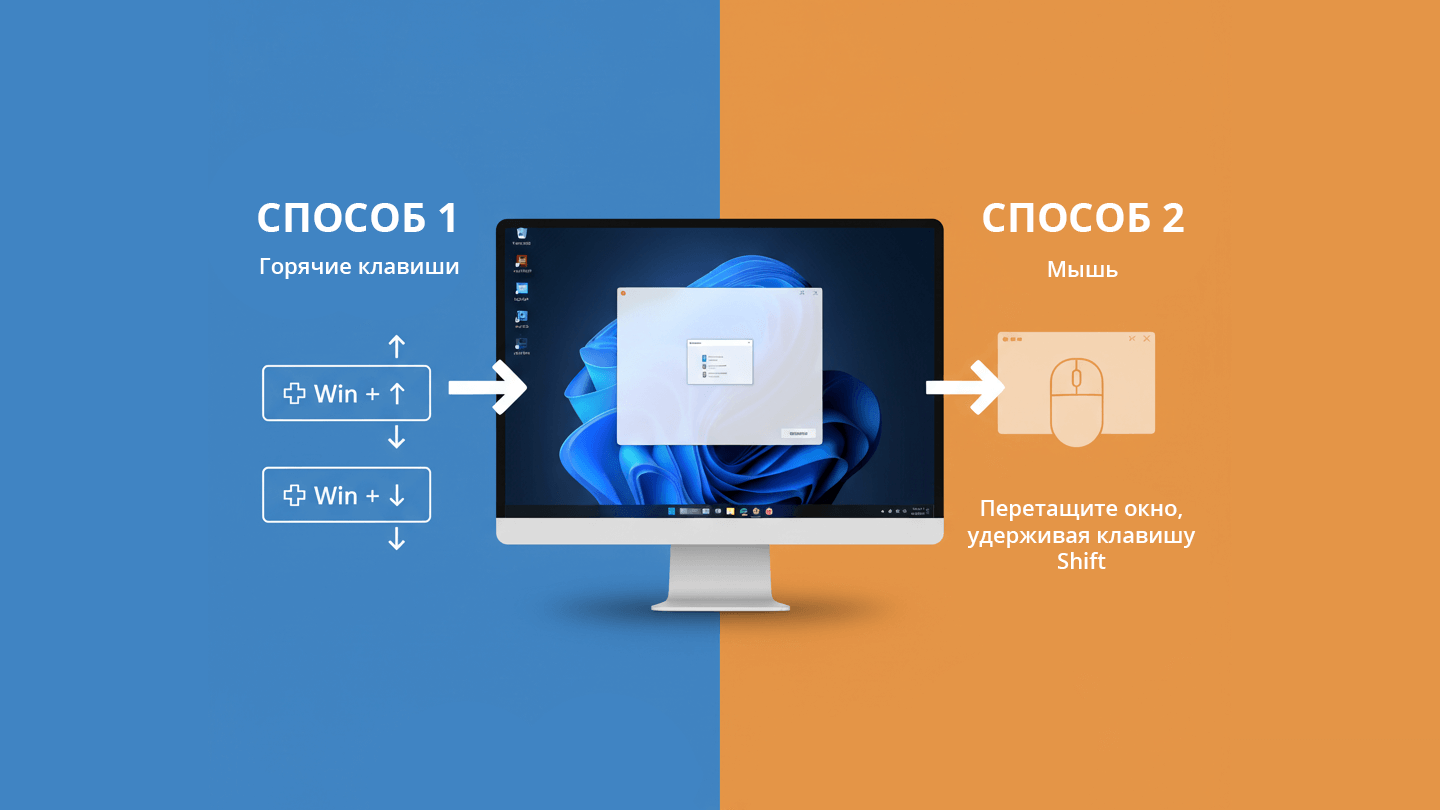
Se, come me, amate l'ordine sul desktop e mentre lavorate, allora posizionare la finestra dell'applicazione al centro dello schermo è un'idea e una pratica molto interessante.
Si apre una finestra, poi un'altra e così via, in modo da creare una serie di finestre sul desktop. E, d'accordo, che bello quando la finestra di cui avete bisogno, in cui state lavorando, si trova esattamente al centro, al centro dello schermo.
Ho trovato un'applicazione già pronta che funziona in forma compressa: Window Centering Helper. L'applicazione ha una versione portatile, che è sufficiente per un compito così semplice.
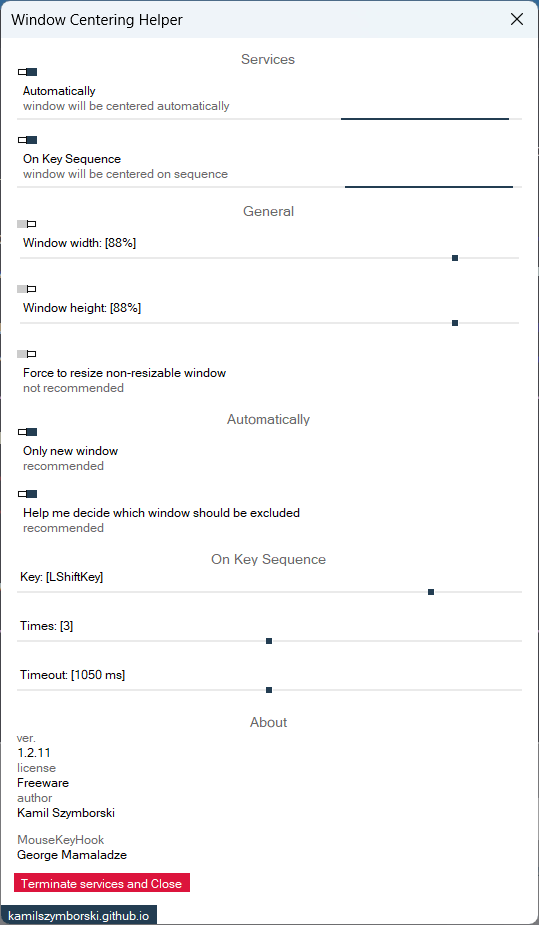
Il programma dispone di una serie di impostazioni che determinano la centratura automatica e manuale delle finestre. Ad esempio, è possibile premere tre volte il tasto destro "Maiusc" sulla tastiera e la finestra attiva verrà centrata.
Scaricare Window Centering Helper
- Nome del file: WindowCenteringHelper-PE.exe (link diretto)
- Versione1.2.11 beta
- Dimensione del file: 1,3 MByte
- Requisito: Sistema operativo Windows 7/8.1/10/11
- MD5: a730d2d86ded709c737c3a45204fe549
C'è un importante "MA". Il programma non è stato aggiornato da molto tempo, ha un'interfaccia utente solo in inglese (forse è importante per qualcuno) e non ha la possibilità di lavorare in modalità completamente nascosta.
Script di allineamento
Ho trovato un'altra soluzione: uno script scritto da me. Funziona in modo completamente automatico e non viene visualizzato affatto nel sistema (nessuna icona della barra delle applicazioni).
' Silent Window Centerer Launcher (Final Version)
' Автор: Илья Анисимов
' Web: https://iluh.in
' Запускает центрирование окон с исправленной логикой

Set objShell = CreateObject("WScript.Shell")

' Проверяем, запущен ли уже процесс
Set objWMI = GetObject("winmgmts:")
Set colProcesses = objWMI.ExecQuery("SELECT * FROM Win32_Process WHERE Name = 'powershell.exe' AND CommandLine LIKE '%WindowCentererSilent%'")

If colProcesses.Count > 0 Then
    WScript.Quit
End If

' PowerShell команда с исправленной переменной
psCommand = "powershell.exe -WindowStyle Hidden -NoProfile -ExecutionPolicy Bypass -Command """ & _
"$Host.UI.RawUI.WindowTitle = 'WindowCentererSilent'; " & _
"Add-Type -AssemblyName System.Windows.Forms; " & _
"Add-Type -TypeDefinition 'using System; using System.Runtime.InteropServices; " & _
"public class Win32 { " & _
"[DllImport(\""user32.dll\"")] public static extern IntPtr GetForegroundWindow(); " & _
"[DllImport(\""user32.dll\"")] public static extern bool GetWindowRect(IntPtr hWnd, out RECT lpRect); " & _
"[DllImport(\""user32.dll\"")] public static extern bool SetWindowPos(IntPtr hWnd, IntPtr hWndInsertAfter, int X, int Y, int cx, int cy, uint uFlags); " & _
"[DllImport(\""user32.dll\"")] public static extern bool IsWindowVisible(IntPtr hWnd); " & _
"[DllImport(\""user32.dll\"")] public static extern bool IsZoomed(IntPtr hWnd); " & _
"[DllImport(\""user32.dll\"")] public static extern bool IsIconic(IntPtr hWnd); " & _
"[DllImport(\""user32.dll\"")] public static extern IntPtr GetParent(IntPtr hWnd); " & _
"[DllImport(\""dwmapi.dll\"")] public static extern int DwmGetWindowAttribute(IntPtr hwnd, int dwAttribute, out bool pvAttribute, int cbAttribute); " & _
"[DllImport(\""user32.dll\"")] public static extern uint GetWindowThreadProcessId(IntPtr hWnd, out uint lpdwProcessId); " & _
"[StructLayout(LayoutKind.Sequential)] public struct RECT { public int Left; public int Top; public int Right; public int Bottom; } " & _
"public const uint SWP_NOSIZE = 0x0001; public const uint SWP_NOZORDER = 0x0004; " & _
"public const int DWMWA_CLOAKED = 14; }'; " & _
"$screen = [System.Windows.Forms.Screen]::PrimaryScreen.WorkingArea; " & _
"$excludeProcesses = @('ShellExperienceHost', 'SearchHost', 'StartMenuExperienceHost', 'LockApp', 'SystemSettings', 'explorer'); " & _
"function Center-Window($hWnd) { " & _
"if ($hWnd -eq [IntPtr]::Zero -or -not [Win32]::IsWindowVisible($hWnd) -or [Win32]::IsZoomed($hWnd) -or [Win32]::IsIconic($hWnd) -or [Win32]::GetParent($hWnd) -ne [IntPtr]::Zero) { return } " & _
"try { $isCloaked = $false; " & _
"[Win32]::DwmGetWindowAttribute($hWnd, [Win32]::DWMWA_CLOAKED, [ref]$isCloaked, [System.Runtime.InteropServices.Marshal]::SizeOf([bool])) | Out-Null; " & _
"if ($isCloaked) { return } } catch {} " & _
"$processId = 0; [Win32]::GetWindowThreadProcessId($hWnd, [ref]$processId) | Out-Null; if ($processId -eq 0) { return } " & _
"try { $processName = (Get-Process -Id $processId -ErrorAction Stop).ProcessName; if ($excludeProcesses -contains $processName) { return } } catch { return } " & _
"$rect = New-Object Win32+RECT; " & _
"if (-not [Win32]::GetWindowRect($hWnd, [ref]$rect)) { return } " & _
"$width = $rect.Right - $rect.Left; $height = $rect.Bottom - $rect.Top; " & _
"if ($width -le 80 -or $height -le 40 -or $width -ge $screen.Width -or $height -ge $screen.Height) { return } " & _
"$newX = [math]::Max(0, ($screen.Width - $width) / 2 + $screen.Left); " & _
"$newY = [math]::Max(0, ($screen.Height - $height) / 2 + $screen.Top); " & _
"[Win32]::SetWindowPos($hWnd, [IntPtr]::Zero, [int]$newX, [int]$newY, 0, 0, [Win32]::SWP_NOSIZE -bor [Win32]::SWP_NOZORDER) | Out-Null; } " & _
"$lastWindow = [IntPtr]::Zero; " & _
"while ($true) { " & _
"try { " & _
"$hWnd = [Win32]::GetForegroundWindow(); " & _
"if ($hWnd -ne $lastWindow) { " & _
"$lastWindow = $hWnd; " & _
"Start-Sleep -Milliseconds 150; " & _
"Center-Window $hWnd; " & _
"} } catch { } " & _
"Start-Sleep -Milliseconds 300; }"""

' Запускаем PowerShell скрыто
objShell.Run psCommand, 0, False
Scaricare il file di script .vbs
È possibile salvare questo script in un file *.vbs e inserire il file nel caricatore automatico:
- Aprite la finestra Esegui (scorciatoia da tastiera: Tasto Win+R).
- Immettere il comando shell:startup.
- Premere "OK" o "Invio" per eseguire il comando.
In alternativa, è possibile eseguire questo file da soli, se necessario. Per terminare lo script nel Task Manager, digitate nella barra di ricerca powershell e terminare il processo Windows PowerShell - "powershell.exe“.